Import Reference
Every CSV import surface, column, and error message in one place
One import engine, many surfaces
Ardent Seller imports CSV files directly in your browser through one shared engine. Inventory, entities (vendors, customers, locations, charities), transactions, procedures, and several Settings registries each have their own import with their own columns — this page is the full reference for all of them. Every import uses the same flow: pick a file, map its columns to Ardent Seller fields, validate every row, and only then save. For a gentler, inventory-focused walkthrough with a worked example, start with Importing from CSV.
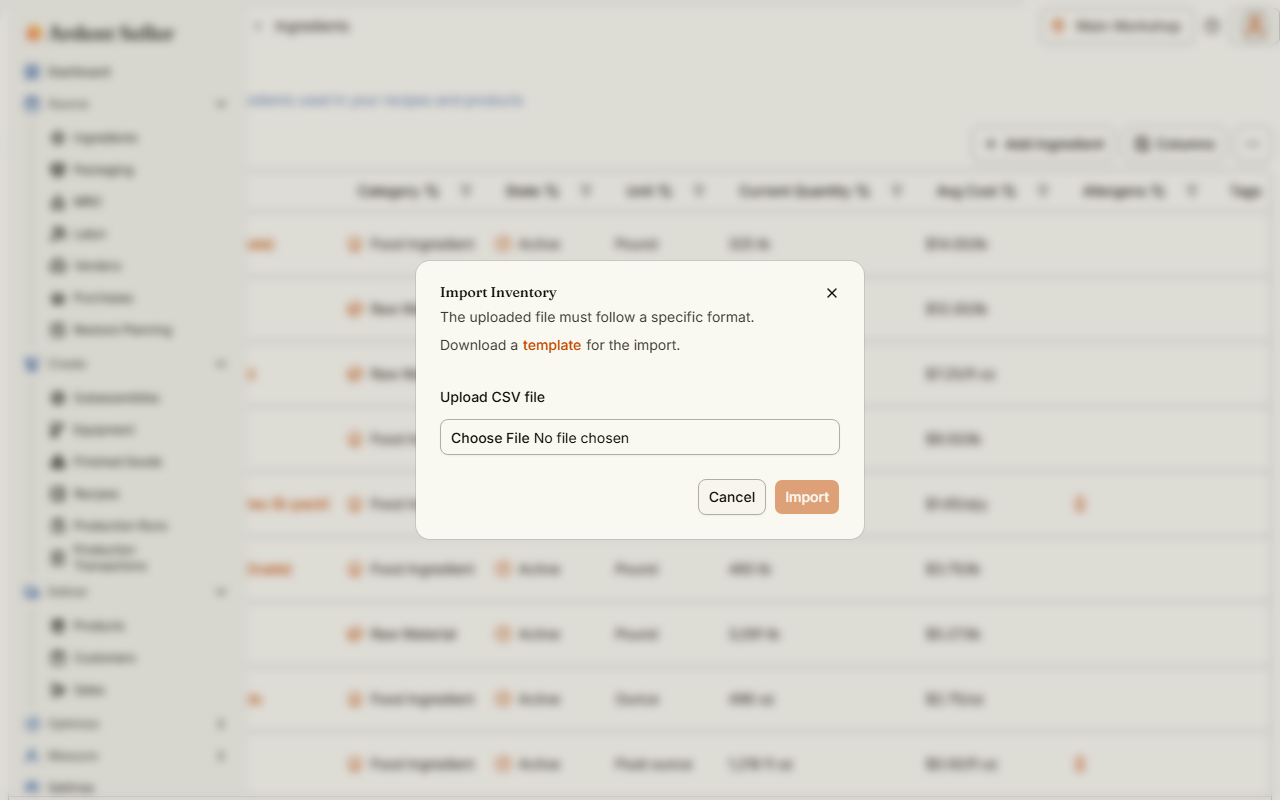
Where Import and Download Template live
On every importable list page, open the ⋯ ("more") menu in the table's action bar. It contains Download Template (a CSV with that surface's exact header row) and Import from CSV (pick your file and start the import). Imports are per-surface: you import inventory items on an inventory list, vendors on the Vendors page, and so on. The import surfaces are:
- Inventory — every inventory list, for example Source → Ingredients, Create → Finished Goods, or Deliver → Products.
- Entities — Source → Vendors, Deliver → Customers, Optimize → Charities, and the Locations page (linked from Settings).
- Transactions — transaction lists such as Source → Purchases and Deliver → Sales.
- Procedures — Create → Recipes.
- Settings registries — Tax Categories, Transaction Methods, Referral Sources, Pricing Tiers, and Attributes (detailed below).
Some surfaces are export-only — stocktake counts, the income statement, price lists, inventory valuation, donations, and customer sales reports can be downloaded as CSV but not imported back.
The column-mapping flow
Your file's headers do not have to match the template exactly — after you pick a file, a mapping step matches your CSV columns to Ardent Seller fields. The import runs in three stages:
- Select the file. Only .csv files up to 10 MB are accepted. The file is parsed in your browser; nothing is uploaded yet.
- Map the columns. Ardent Seller pre-matches your headers to its fields — exact matches first, then common synonyms ("qty" for Quantity, "item code" for SKU), then close-typo matches. You review the suggestions next to a preview of the first 5 rows of your file and can change any assignment. Every required field must be mapped before you can continue, and each CSV column can be used for only one field.
- Validate and import. Every row is checked — required values, valid categories, states, and units, numeric fields, and references to existing records. Only when every row passes is anything saved.
Values for list-based columns (Category, State, Unit, Status, and so on) are matched case-insensitively, and a near-miss gets a "Did you mean?" suggestion in the error list.
Validation is all-or-nothing
One invalid row aborts the whole import — nothing is saved until every row is valid. Errors are reported with their row numbers, so fix the listed rows and upload the file again.
Once validation passes, records are saved in batches of 100, and the dialog counts them off as it goes — a large file simply takes a little longer, so leave the dialog open until it finishes. In the rare case that the server rejects a batch part-way through (a plan limit or a duplicate that only shows up on save), the dialog tells you how many records were saved and keeps only the ones that were not, so pressing Import again picks up where it stopped instead of importing anything twice. Once some records are saved, the dialog no longer offers Back: changing the column mapping would send the whole file again, and the saved records would fail as already existing. Press Import to carry on, or Cancel to stop there.
The location limit is the exception, because pressing Import again would send the same location rows and be refused the same way. When an entity import stops there, the dialog counts the location rows left in the rest of the file, names the first few, and offers to import everything else without them. Add those locations yourself once your plan has room. If only location rows are left, there is nothing more to import, so Cancel.
Inventory columns
One row per item; add extra rows for variants (see the Variant columns below). Name, SKU, Category, State, and Unit are required — they must be mapped and filled in on every row.
| Column | Required | Description | Valid values / example |
|---|---|---|---|
Name | req | The item name. | e.g. Vanilla Extract |
SKU | req | A unique identifier for the item. | e.g. VAN-001 |
Category | req | The item type. Use "raw" for ingredients and materials (shown in the app as Ingredient or material). "food" is still accepted and imports as Ingredient or material tagged Food. | raw, food, subassembly, packaging, finished, mro, equipment, labor, product, service |
UsedIn | opt | Ingredient or material rows only. Enter "Food" for an edible ingredient; leave it blank for everything else. A row that names a food in the Food column is tagged Food even without it. | Food, or blank |
ProductType | opt | Product and finished good rows only. Blank leaves the type Not set; Ardent Seller sets it when you save a recipe or production run with ingredients for the item (Food if the recipe uses a Food ingredient, otherwise Other). The import summary counts these products (the variant rows of one item count once), for example "3 products have no product type yet. On Products or Finished Goods, filter the Product type column to Not set, select them and use Product type to set Food or Other. Then clear the filter." | Food, Other, or blank |
State | req | The item lifecycle state. Use "active" for items in use. | draft, active, archived |
Unit | req | The tracking unit — the full unit NAME, not the abbreviation ("gram", not "g"). | e.g. unit, gram, kilogram, ounce, pound, milliliter, liter, hour |
Description | opt | Free-text notes about the item. | e.g. Pure Madagascar bourbon |
BinLocation | opt | Where the item is physically stored. | e.g. Shelf A3 |
DefaultEntity | opt | Must exactly match an existing location or vendor name, or be left blank. | e.g. Main Kitchen |
Food | opt | The name of the entry in the built-in food list to link the item to, matched exactly as it appears there (an export writes it for you). Required only on rows whose Category is the older "food". A row tagged Food without it still imports, tagged Food with no food link, and the import shows a notice so you can choose the closest food afterwards. When the name matches, the item also gets that food's allergens, the same list the item sheet fills in when you link a food. | the exact name of an entry in the food list |
Price | opt | The item's SELLING price (not purchase cost). Leave blank for pure raw materials. | numeric, e.g. 6.00 |
Quantity | opt | Opening on-hand stock in the item's Unit. Pairs with UnitCost to seed the opening-balance transaction. Item level only — leave blank on variant rows. Cannot be negative; import stock that is already overdrawn as an adjustment transaction instead. | numeric, 0 or more |
UnitCost | opt | Purchase cost per unit in your account currency. Pairs with Quantity for the opening balance. | numeric, 0 or more |
Allergens | opt | Comma-separated allergens present in the item. These are added to the allergens of the food named in the Food column, if it matches. With no allergens here and no matched food, a food item imports with its allergens Not set (never as allergen-free) until you set them or confirm it contains none in the app. | milk, eggs, fish, shellfish, tree nuts, peanuts, wheat, soybeans, sesame |
MinimumOrderQuantity | opt | The smallest quantity you can order, in the item's Unit. | numeric, e.g. 12 |
OrderIncrement | opt | The step size in which the item is ordered. | numeric, e.g. 6 |
LeadTimeDaysOverride | opt | Overrides the vendor's default lead time, in days. | integer, e.g. 14 |
ReplenishPoint | opt | Low-stock trigger, in the item's Unit. On-hand at or below this flags the item. | numeric, 0 or more |
ReplenishQuantity | opt | Suggested top-up amount when the item runs low. | numeric, 0 or more |
Tags | opt | Semicolon-separated EXISTING tag names (matched case-insensitively). Import never creates tags. Item level only. | e.g. bestseller;fall-line |
VariantSKU | opt | SKU for a variant. On a variant row, repeat the item Name and SKU and fill this in. | e.g. SOAP-100-LG |
VariantDescription | opt | A description of the variant. | e.g. Large bar |
VariantPrice | opt | The selling price for this variant. | numeric, e.g. 9.00 |
VariantQuantity | opt | Opening stock for this variant, on the variant's row. Leave item-level Quantity blank or stock is double-counted. Cannot be negative; import stock that is already overdrawn as an adjustment transaction instead. | numeric, 0 or more |
VariantUnitCost | opt | Purchase cost per unit for this variant. Pairs with VariantQuantity. | numeric, 0 or more |
AttributeName | opt | An item-level attribute. Must already exist under Settings > Attributes. | e.g. Scent |
AttributeValue | opt | The value for that attribute. Must be one of its defined options. | e.g. Lavender |
VariantAttributeName | opt | A variant-level attribute. Must already exist under Settings > Attributes. | e.g. Size |
VariantAttributeValue | opt | The value for the variant attribute. Must be one of its defined options. | e.g. Large |
Variant opening stock: never fill both levels
Quantity and UnitCost seed an opening-balance transaction for the item, setting on-hand stock and starting average cost in one step. For an item with variants, put opening stock on the variant rows via VariantQuantity and VariantUnitCost and leave the item-level columns blank — filling in both levels double-counts the stock, because each pair creates its own opening-balance transaction. See How Stock Moves for how opening balances work.
A variant row repeats the item's Name and SKU, then fills in the Variant columns. Attributes named in AttributeName or VariantAttributeName must already exist under Settings → Attributes with the value as a defined option, and Tags names must already exist in your tag registry — import never creates them.
Entity columns: vendors, customers, locations, charities
The same column set covers all entity lists. Name, Category, and State are required — except that on a list fixed to a single category (such as Vendors), the Category column does not need to be mapped.
| Column | Required | Description | Valid values / example |
|---|---|---|---|
Name | req | The entity name (business or person). | e.g. Bulk Supplies Co. |
Category | req | The entity type. Not required to map on single-category lists such as Vendors. | vendor, customer, charity, primary, secondary, storage, production, sales |
State | req | Lifecycle state. | draft, active, archived |
FirstName | opt | Contact first name. | e.g. Dana |
LastName | opt | Contact last name. | e.g. Reyes |
StreetAddress1 | opt | Address line 1. | e.g. 12 Main St |
StreetAddress2 | opt | Address line 2. | e.g. Suite 4 |
City | opt | City. | e.g. Austin |
StateProvince | opt | State or province. | e.g. TX |
PostalCode | opt | Postal or ZIP code. | e.g. 78701 |
Country | opt | Country name from the supported list. | e.g. United States |
Email | opt | Contact email address. | e.g. hello@example.com |
Phone | opt | Contact phone number. | e.g. 555-0100 |
Website | opt | Website URL. A customer created from a marketplace order exports its buyer link here (marketplace:…). Import leaves that value out, since only the marketplace sync sets it: the row imports with Website blank, and the dialog says how many were left out. | e.g. https://example.com |
Source | opt | Customers only. An EXISTING referral-source name (matched case-insensitively); never auto-created. | e.g. Farmers Market |
Groups | opt | Customers only. Semicolon-separated EXISTING group names; never auto-created. | e.g. Wholesale;VIP |
LeadTimeDays | opt | Vendors only. Typical lead time in days. | integer, 0 or more |
MinimumOrderValue | opt | Vendors only. Minimum order value in your account currency. | numeric, 0 or more |
OrderingNotes | opt | Vendors only. Free-text ordering notes. | e.g. Order by Wednesday |
Source and Groups only apply to customers, and LeadTimeDays, MinimumOrderValue, and OrderingNotes only to vendors — they are rejected on other categories. Source and group names must already exist in your registries; import never creates them.
Transaction columns
One row per transaction line item. The Entity and Inventory values must match records that already exist in your account. Rows that share an InitiationDate and TransactionNumber become one transaction, which can hold at most 1,000 line items.
| Column | Required | Description | Valid values / example |
|---|---|---|---|
InitiationDate | req | When the transaction started. | date, e.g. 2026-07-01 |
TransactionNumber | opt | Order, invoice, or receipt reference. | e.g. INV-1042 |
Entity | req | The vendor, customer, or other entity — must match an existing entity name. | e.g. Bulk Supplies Co. |
Category | req | The transaction category. | initial, purchase, adjustment, waste, loss, donation, stocktake, manufacture, assembly, send, receive, sale, expense, income, consumption |
Status | req | The transaction status. Only completed transactions move stock. | initiated, in progress, completed, canceled, returned |
CompletionDate | opt | When the transaction completed. | date, e.g. 2026-07-03 |
Surcharge | opt | Surcharge amount. | numeric |
Discount | opt | Discount amount. | numeric |
Tax | opt | Tax amount. | numeric |
Shipping | opt | Shipping amount. | numeric |
Fees | opt | Other fees. | numeric |
MethodFees | opt | Payment-processing fees. | numeric |
Inventory | req | The inventory item on this line — must match an existing item. | e.g. Lavender Soap |
BatchNumber | opt | Batch or lot number for the line. | e.g. LOT-88 |
BrandName | opt | Brand of the purchased goods. | e.g. Acme |
ProductName | opt | The vendor's own product name. | e.g. Soap Base 5kg |
CountryOfOrigin | opt | Country of origin from the supported list. | e.g. United States |
ExpirationDate | opt | Expiry date for perishable goods. | date |
PackageUnit | req | The unit each package is measured in — full unit name. | e.g. gram, unit, liter |
QuantityInPackage | req | How much of the item one package contains. May be negative on adjustment, stocktake, and income rows, which take their direction from the sign. | numeric |
PackageCost | req | Total cost (or sale price on sales) for the package — not a per-unit cost. May be negative on adjustment, stocktake, and income rows, and must then match the sign of QuantityInPackage. | numeric |
PackageQuantity | req | How many packages this line covers. Whole numbers only — to record a part package, set this to 1 and fold the fraction into QuantityInPackage and PackageCost. | whole number |
TaxCategory | opt | An existing tax-category name. | e.g. Supplies |
Description | opt | Line description. | free text |
Notes | opt | Free-text notes. | free text |
Tags | opt | Semicolon-separated EXISTING tag names; never auto-created. | e.g. market-day |
Status must be completed for stock to move
Imported transactions follow the same rule as everything else in Ardent Seller: only completed transactions change on-hand quantities. If you import historical purchases or sales with a Status of initiated or in progress, your stock will not move until each transaction is marked completed. See How Stock Moves.
Importing stock that is already negative
If you are switching from a tool that let stock go below zero, import those items with a blank or 0 opening Quantity, then bring the shortfall in as an adjustment transaction. Adjustment, stocktake, and income rows take their direction from the sign you give them, so a negative QuantityInPackage lowers stock. Because PackageCost is the total for the line rather than a per-unit price, give it a matching negative value — for 2 units short at $3.01 each, that is -2 and -6.02. Mismatched signs are rejected, because they would leave the item with a negative cost per unit.
Procedure columns: recipes and production
A procedure spans multiple rows: the first row carries the procedure-level fields, and additional rows repeating the Name carry one ingredient or one step each. The TargetInventory item must already exist.
| Column | Required | Description | Valid values / example |
|---|---|---|---|
Name | req | The recipe or procedure name. Repeated on every ingredient and step row. | e.g. Lavender Soap Batch |
Description | opt | Free-text description. | free text |
BatchNumber | opt | Batch or lot number. | e.g. LOT-88 |
Category | opt | The procedure type. Omit the column and every row imports as a recipe. | recipe, production |
State | opt | Lifecycle state. Omit the column and every row imports as a draft, ready for you to review and activate. | draft, active, archived |
TargetInventory | req | The item this procedure produces — must match an existing producible item. | e.g. Lavender Soap |
TargetVariantSKU | opt | Targets the recipe at a specific variant of the target item. Must match one of its VariantSKUs; blank targets the whole product. | e.g. SOAP-100-LG |
InitiationDate | opt | Start date. | date |
CompletionDate | opt | Completion date. | date |
BatchUnit | req | The unit the batch output is measured in — full unit name. | e.g. unit, gram, liter |
QuantityInBatch | req | How much one batch yields, in the BatchUnit. | numeric |
BatchQuantity | opt | Number of batches. | numeric |
Ingredient | opt | One ingredient per row — must match an existing item allowed for this target. | e.g. Lavender Oil |
IngredientUnit | opt | The unit for the ingredient quantity — full unit name. | e.g. milliliter |
IngredientQuantity | opt | How much of the ingredient one batch uses. | numeric |
StepNumber | opt | One step per row; steps are ordered by this number. | integer, e.g. 1 |
StepInstruction | opt | What the step does. | e.g. Melt the base |
StepDurationQuantity | opt | How long the step takes. | numeric |
StepDurationUnit | opt | The time unit for the duration. | e.g. minute, hour |
Tags | opt | Semicolon-separated EXISTING tag names on the first row; never auto-created. | e.g. fall-line |
Settings registries and custom fields
Five Settings registries have their own ⋯ menu import. Each is a small, flat CSV — download the registry's template to see the headers.
| Registry | Required columns | Optional columns |
|---|---|---|
| Tax Categories | Name, CategoryType, State | IRSCategory, Description, SortOrder |
| Transaction Methods | Name, State | Description, ApplicableCategories (semicolon-separated), FixedFee, PercentageFee |
| Referral Sources | Name, State | Description |
| Pricing Tiers | Name, Tier Type, Value Type, Value, State | Description |
| Attributes | Name, State | Options (semicolon-separated name:abbreviation pairs) |
Custom fields are imported as extra columns on the surfaces that host them: after you define a field under Settings → Custom Fields, its exported header looks like CF: Field name and appears in the mapping step like any other column. The field definitions themselves are created in Settings, not by CSV. Tag and customer-group registries do not have a CSV import either — create tags and groups in Settings first, then reference them by name in the Tags and Groups columns of the imports above.
Warnings before you import
Some files pass every check and are still wrong. The import dialog shows these in an amber box above the Import button. They never block the import — read them, then decide.
Biggest stock changes in this file
The three largest quantities in the file, each shown in the unit your file used, with its row number. A quantity column is a multiplier on stock, so one wrong cell moves your on-hand by an arbitrary amount. Check these against your source file before importing — a wrong quantity is hard to unwind once it is in your books.
Rows dated on or before an opening balance
On-hand is a running total with no date filter, so a purchase dated 2022 adds stock today exactly as one dated today. An opening balance is a snapshot that already includes everything you bought before it. Importing an older purchase history on top of one therefore counts the same goods twice. If that is what is happening, either leave the historical rows out, or check each affected item's on-hand against your own count once the import finishes. If you entered a zero or partial opening balance on purpose and are now loading your history, you can ignore this.
Dates that look like a placeholder
Rows more than ten years old, rows in the future, or one date shared by every transaction in the file — the signature of a date column filled down by mistake. These import as they are, and everything with a time axis (spend by month, vendor price history, your tax year) is built on them.
Common errors and what they mean
These are the exact messages the importer shows (row numbers and values vary with your file).
Errors are shown under one of two headings. Errors with uploaded CSV: means something in the file needs fixing. The import stopped: means the run was stopped, usually by something outside the file (your plan, your connection, or switching account or location): check what the message says, deal with it, then run the import again.
Please select a CSV file.
The file is not a .csv. Export or save your spreadsheet as CSV first — .xlsx and other formats are not accepted.
File is too large (12.4 MB). Maximum size is 10 MB.
The 10 MB limit is per file. Split a large export into smaller files and import them one at a time.
The CSV file contains no data rows.
The file has headers but nothing beneath them. Add at least one data row.
CSV parsing error (Row 3): ...
The file itself is malformed at that row — often an unclosed quote or a ragged row. Re-export from your spreadsheet program.
"Name" is required. Choose the CSV column that contains it.
A required field is not mapped to any CSV column. In the mapping step, assign a column to every field marked required.
The CSV column "Product Name" is mapped to more than one field (Name, SKU). Each column can only be used once.
Two fields point at the same CSV column. Change one of them — every field needs its own column.
Row 4: Category is required. Valid values: raw, food, subassembly, ...
A required cell is blank on that row. Fill it in with one of the listed values.
Row 4: Invalid Unit "g". Did you mean "gram"?
The value is close to a valid one but not exact. Values are matched case-insensitively, but abbreviations are not accepted — use the suggested full name.
Row 274: Inventory "2oz spray bottle" not found. Did you mean "2 Oz Spray Bottle"?
The name does not match any item or entity in your account, but one is close enough to name. Names are matched exactly apart from case and invisible characters, so a difference you can see — a space between a number and its unit, a shortened name — has to be corrected in the file (or the record renamed). The suggestion never resolves the row on its own; if two records are equally close, no suggestion is offered.
Row 12: PackageQuantity "8.5" must be a whole number of packages.
Package counts are whole numbers. To record a part package, set PackageQuantity to 1 and fold the fraction into QuantityInPackage and PackageCost — the message spells out the exact values, and the result carries the same stock, line total and cost per unit.
Row 4: QuantityInPackage "3232225" ounce is 91,632.04 kilogram in one package — more than the 1,000 kilogram this import accepts as a real amount.
The cell is a valid number but not a possible amount of stock. QuantityInPackage is how much ONE package holds, not the total across packages, and exports from other tools sometimes drop a case size, a barcode or a running total into that column. The limit is per unit type — a million pieces is allowed, a million pounds is not. Fix the value in the file and upload it again.
Row 8: Quantity "3232225" ounce is 91,632.04 kilogram in this item — more than the 1,000 kilogram this import accepts as a real amount.
The same check on an inventory import's opening stock column. An opening balance goes straight onto the shelf, so there is no later transaction to blame if the number is wrong.
Rows dated 2026-07-01 with TransactionNumber "INV-1042" make one transaction of 1,250 lines; the limit is 1,000. Give some of these rows a different TransactionNumber.
Rows that share a date and a TransactionNumber (or a date and a blank TransactionNumber) are imported as one transaction, and a single transaction can hold at most 1,000 line items. The check runs before anything is imported, so nothing is saved. Give some of the rows a different TransactionNumber to split them into smaller transactions, then upload the file again.
No account selected. Reload the page and try again.
The app lost track of your active account. Nothing is wrong with your file. Reload the page and run the import again.
No account or location selected. Reload the page and try again.
An inventory or procedure import needs both an account and a location, and the app lost track of one of them. Nothing is wrong with your file. Reload the page, check the location selector, and run the import again.
Your account hasn't finished loading. Reload the page and try again.
A pricing tier or referral source import started before your account details had loaded. Nothing is wrong with your file. Reload the page and run the import again.
Account changed during import. Please try again.
You switched accounts between choosing the file and confirming the column mapping, so the rows would have landed in the wrong account. Switch back and run the import again — nothing was saved.
Account or location changed during import. Please try again.
You switched accounts or locations between choosing the file and confirming the column mapping, so the rows would have landed in the wrong place. Switch back and run the import again — nothing was saved.
Location limit reached: these rows add 4 locations, but your Artisan plan allows 3 locations and you already have 3, so none of them were imported. Remove 4 location rows or upgrade your plan.
An entity import tried to add more locations than your plan allows, so the run stopped. The counts are for the batch of up to 100 rows that was refused, not the whole file. Below it, the dialog counts the location rows left in the rest of the file and offers to import the other rows without them. Rows imported before the stop are already saved, so importing the same file again reports them as already existing.
Failed to import data: ...
The rows passed the checks in your browser but the server refused the first batch, so nothing was saved; the text after the colon is the reason. If the server rejected a value (such as a malformed date) or found a name that is already taken, by a record in Ardent Seller or by an earlier row of the same file (such as "A customer with the name ... already exists"), the message is under "Errors with uploaded CSV:": pressing Import would send the same row and be refused again, so fix or remove that row in your file and upload it again. Anything else (a connection or server error, or a plan limit) is under "The import stopped:": read the reason, then run the import again. If it keeps happening, contact support via the in-app help form.
Imported 200 of 450 records before this error: ...
The import is sent in batches of up to 100 rows, and a later batch was refused. The records counted first are already saved and stay saved. The heading follows the same rule as "Failed to import data": a rejected value or a name that is already taken (by a record in Ardent Seller or by an earlier row of the same file) is under "Errors with uploaded CSV:", anything else under "The import stopped:". Under "Errors with uploaded CSV:", pressing Import would resend the same row and be refused again: fix or remove that row, then Cancel and upload a file without the rows already saved. Under "The import stopped:", the dialog says how many rows are left: press Import to send only those, or Cancel to stop. To change the column mapping instead, Cancel and upload a file without the rows already saved, or they are reported as already existing.
What import never does
Import fills in your data — it never invents reference records from the values it finds. Specifically, import never auto-creates:
- Locations or vendors — a
DefaultEntityorEntityvalue must match an existing entity by name. - Attributes or attribute options — define them under Settings → Attributes first.
- Tags — names in the
Tagscolumn must match existing registry tags; unrecognized names are reported as errors. - Customer groups or referral sources — the
GroupsandSourcevalues must match existing names.
It also never saves part of a file: validation is all-or-nothing, so a failed import leaves your account exactly as it was. Create the reference records first, then import — if an import fails, the row-numbered errors tell you which values were not found.
Related articles
Importing from CSV
How to bulk-import inventory, entities, transactions, and more into Ardent Seller from CSV — including opening stock quantities and unit costs.
How Stock Moves
How inventory quantities change in Ardent Seller — which transaction categories add or remove stock, and why nothing moves until a transaction is Completed.
Troubleshooting
Fix the most common Ardent Seller problems — stock that did not move, production runs that consumed nothing, inventory missing after switching locations, CSV import errors, and save failures.